Free Flashcard Maker: Turn Notes Into Study Cards

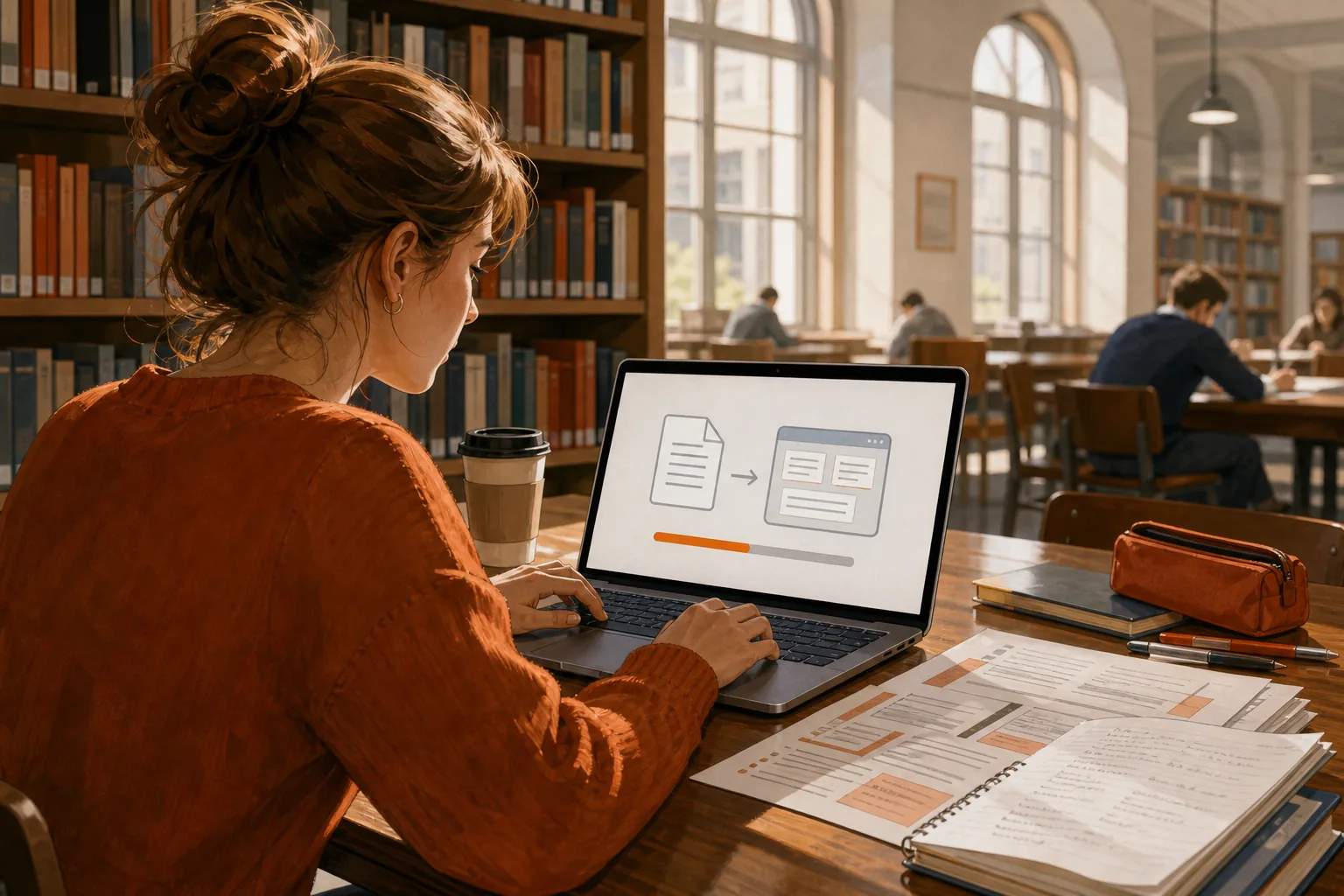
Lecture slides pile up fast. A free flashcard maker can turn your course material into cards and practice questions, so you spend less time typing and more time testing what you know.
Choose a tool that works with your files, check every generated card, then set up a review routine you can keep using.
Step 1: Choose a Free Flashcard Maker That Fits Your Course
Start with your course material, not a long feature list. If you study from lecture slides or PDFs, look for a tool that can turn those files into cards. If your course relies on terms and definitions, a basic front-and-back deck may be enough.
Then check what you get for free. Some tools focus on hand-made decks. AnkiDroid is a free option with spaced repetition and unlimited decks, but it doesn’t generate cards with AI. Quizlet’s free tier includes study features, while its AI card generation is based on audio recordings. Knowt can generate cards from notes, PDFs, and videos. Those differences matter when your source is a slide deck rather than a recording.
Check how the tool schedules review, too. Spaced repetition brings cards back at intervals, so you can review material again instead of relying on one long cram session. The basic idea behind spaced repetition is to revisit information over time.
StudyBuddy is a good fit when you want to start with your own course files. It turns uploaded PDFs, slides, notes, or photos into flashcards, multiple-choice questions, and answer explanations. Practice adapts to your performance, and topic mastery plus Readiness Score can help you decide what to review next. They’re study signals, not a promise about an exam result.
Check the device you’ll use most before you sign up. StudyBuddy works on the web and iPhone, and it’s free to try. A browser guest session lets you test the workflow without signing up, but don’t assume free access means unlimited new uploads. You can try PDF-to-flashcard generation from your own course material and see if the cards match your class.
By now, you should know what file types you need, which review mode you’ll use, and what the free plan lets you test.
Step 2: Import Your Notes, PDFs, Slides, or Other Course Material
Pick one focused source first. A single lecture deck or chapter is easier to check than a whole course folder. Use the material your instructor expects you to know, such as a lecture PDF, course notes, or an official study guide.
Before you upload, make sure the file is readable. For scanned pages, check that the text is clear and in the right order. If the diagrams hold key details, keep the original file nearby so you can compare them with the generated cards.
For a PDF, open the flashcard tool and choose its upload option. Add the file, select the flashcard or quiz output you want, then wait for processing to finish. With StudyBuddy, one upload can produce flashcards, MCQs, and answer explanations. You can use the cards for recall, then switch to questions for a test-like check.
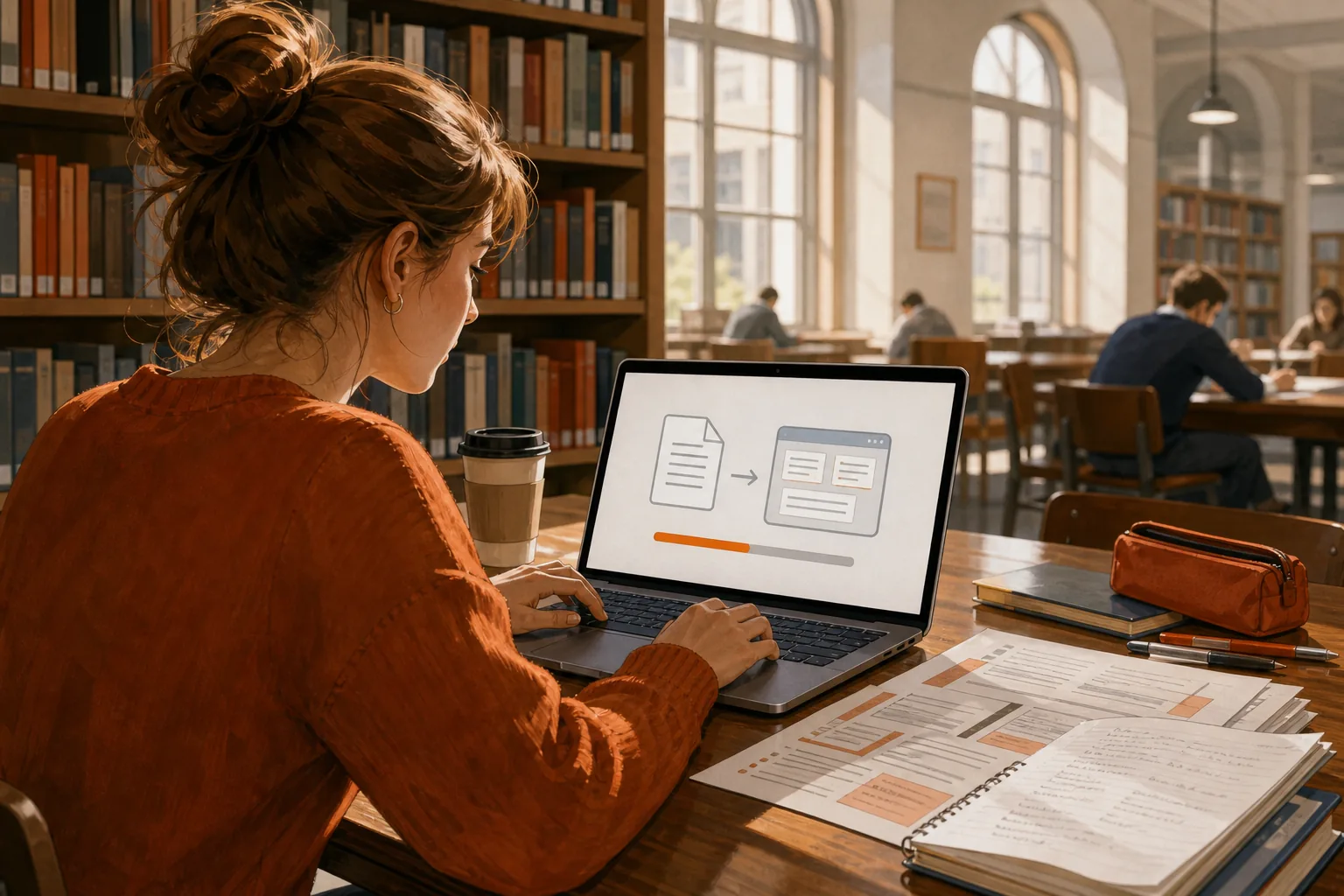
Slides work best when the text is clear and each slide covers a manageable idea. If you have a large file, split it by lecture or topic when the tool allows it. This makes it easier to spot a missing subject area and to fix a bad card without sorting through a huge deck.
If you start from a scan or handout, check whether the words and layout are accessible before you upload. A guide to checking PDF accessibility and document structure can help you spot source-file issues that may make text hard to read.
For lecture recordings, make notes or a transcript first if your chosen tool doesn’t accept video. An overview of AI meeting-notes tools may help you compare ways to turn spoken material into text you can review and import.
By now, you should have one small deck built from a source you can check against the original.
Step 3: Review, Correct, and Practice With Your New Flashcards
Generated cards are a first draft. Read through them before you study. Compare each answer with your notes, course PDF, or slides. Fix errors, remove repeated cards, and add a card if a key idea is missing.
Turn your notes into a practice exam
Upload a document and StudyBuddy builds questions, flashcards and explanations in minutes.
Try it freeKeep each card focused on one question. A card that asks for a definition should not also ask for three examples and a whole process. For a statistics class, one card might ask what a p-value means. A contract law card could test one term or rule. Short prompts make it easier to see what you can recall.
Try to answer before you flip the card. That effort is active recall. If you miss the answer, read the explanation and try again later. The testing effect describes how recalling information through a test can support later memory.
Use different formats for different tasks. Flashcards help you check terms, formulas, or short facts. MCQs help you practice choosing between close answers. Explanations can show why an option was wrong, which is useful when a subject has similar concepts.
StudyBuddy adapts practice based on your answers. Get one wrong? Review the explanation, then return to that topic later. Topic mastery and Readiness Score can point to areas worth another look. They don’t replace your course plan, and they can’t guarantee a grade.
For a card-making routine you can repeat, use this guide to writing clear, useful flashcards. It can help you spot cards that test too much at once.

By now, you should have a checked deck and a clear way to review the cards you missed.
Step 4: Check Device Access, Sharing, and Deck Management
Before you build several decks, check how you’ll reach them. Sign in on the device you plan to study with, then confirm whether your work carries across the web and mobile app. Don’t count on cloud sync or offline study unless the tool confirms those features for your account.
StudyBuddy is available on the web and iPhone. If you switch between devices, check that your progress and uploaded material appear where you expect. This is especially useful when you make cards on a laptop after class, then review them on your phone during a short break.
Give each deck a clear name based on the course and topic. For example, separate a statistics deck on probability from one on regression. Add a date or lecture label only if it helps you find the right set. A simple structure is easier to maintain than one large deck with mixed subjects.
If you study with classmates, check sharing settings before sending a deck. Confirm whether a link is public or limited to invited people. Share only material you’re allowed to share, and remove personal notes or private class details first. A shared deck can help a group review the same terms, but everyone should check its answers against course sources.
For practice built from a document, StudyBuddy can also generate MCQs and answer explanations from the material you upload. Its AI quiz generator for course notes can help when you want to move beyond card-by-card recall.
Keep a backup of important notes outside the flashcard app. If you stop using a tool, check its export options before deleting your account or clearing a deck. Import and export formats differ, so test the process with a small set before relying on it for a full course.
By now, you should know where your decks live, how to share them safely, and what to check before switching devices.
Frequently Asked Questions
Can I turn a PDF into flashcards for free?
Yes, some free flashcard makers let you upload a PDF and generate study cards. StudyBuddy is free to try and can turn uploaded course PDFs into flashcards, MCQs, and answer explanations. Check the current free-use limits before uploading several documents, since trying a tool for free doesn’t always mean unlimited processing.
How do I make flashcards from lecture slides?
Use a free flashcard maker that accepts slide files or PDFs. Upload one lecture at a time, generate cards, and compare the results with the original slides. Correct unclear questions before studying. If your tool doesn’t accept slides, save them as a readable PDF or copy the key text into a supported format.
Are AI-generated flashcards accurate?
AI-generated flashcards can contain mistakes or miss details, so check them against your class material before you rely on them. Review each answer and explanation. If a card combines several ideas, split it into smaller prompts. A free flashcard maker can speed up drafting, but you still need to confirm what your instructor expects.
Can I study flashcards on my phone and computer?
Some free flashcard makers support both mobile and web access, but sync and offline use vary by tool and account. Check that your deck and progress appear on each device before you depend on them. StudyBuddy works on the web and iPhone; confirm the current access and sync details in the app.
Can I share flashcard decks with classmates?
Some flashcard tools let you share decks, but the available controls vary. Check whether classmates need an account and whether your deck is public or private. Before sharing, confirm that you have permission to share the source material. A free flashcard maker should make its sharing settings clear before you send a link.
Conclusion
Choose a tool that accepts the files you already study from, then check every card before you use it. If you want flashcards and MCQ practice based on your own course materials, try StudyBuddy with one lecture PDF and see whether its output fits your next study session.
Turn your notes into a practice exam
Upload a document and StudyBuddy builds questions, flashcards and explanations in minutes.
Try it freeRelated articles
-
Create Study Cards With an Online Flashcard Maker
Got lecture slides piling up and no time to turn them into cards? An online flashcard maker can turn your course files into a first draft, so you can spend more time testing what you know. Here’s a...
-
Best Multiple Choice Test Maker Tools for Students
Need practice questions from a course PDF or lecture slides? The right multiple choice test maker can turn your study material into a test you can work through, not another stack of notes to format...
-
How to Make Effective Flashcards
Effective flashcards make you recall an answer before you see it. A card that only asks you to pick from choices can feel easy without testing what you know. Use this six-step process to turn course...